Your first server with Odyssey Server Admin
Odyssey Server Admin is the desktop app for running a server. It installs the server for you, starts it, and is where you change everything about your world afterwards: its settings, maps, items, players and scripts.
This guide takes you from nothing to a server that is running on your own computer. Putting it on the server list, so players can find it, is the next step.
What you need#
- A computer running Windows 10 or newer, macOS, or Linux, that stays on while people play.
- Odyssey Server Admin, from the downloads page. You do not need to download the server separately: the app does that.
- If you are bringing a world over from the original Odyssey, its converted
.dbfile. Convert it first; it takes a few minutes.
Install the server#
Open Odyssey Server Admin. The first time, it asks which server to work with.
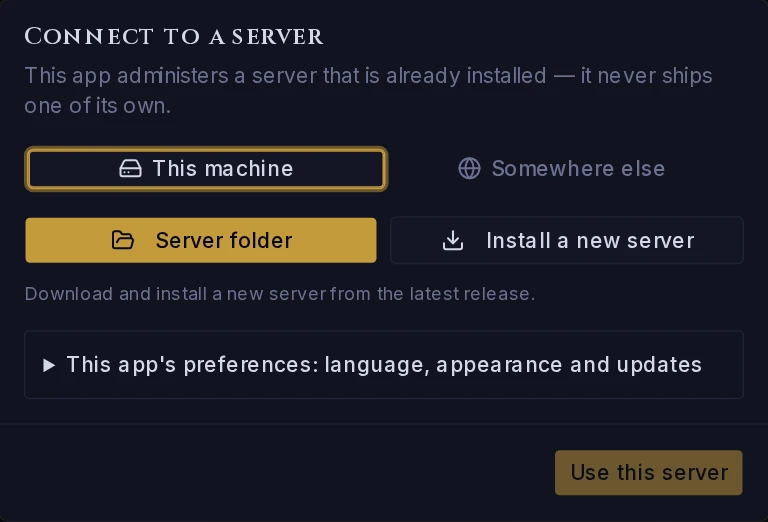 The app manages a server; it is not one itself. First it needs a server to manage.
- Stay on This machine and choose Install a new server.
- The app looks up the newest release. While Odyssey is in testing it offers a test release and says so.
- Press Choose installation folder and pick an empty folder, or type the name of a new one. Somewhere you will find again, such as
Odyssey Serverin your home folder. - Press Install. The app downloads the server, checks the download is the genuine release, and unpacks it.
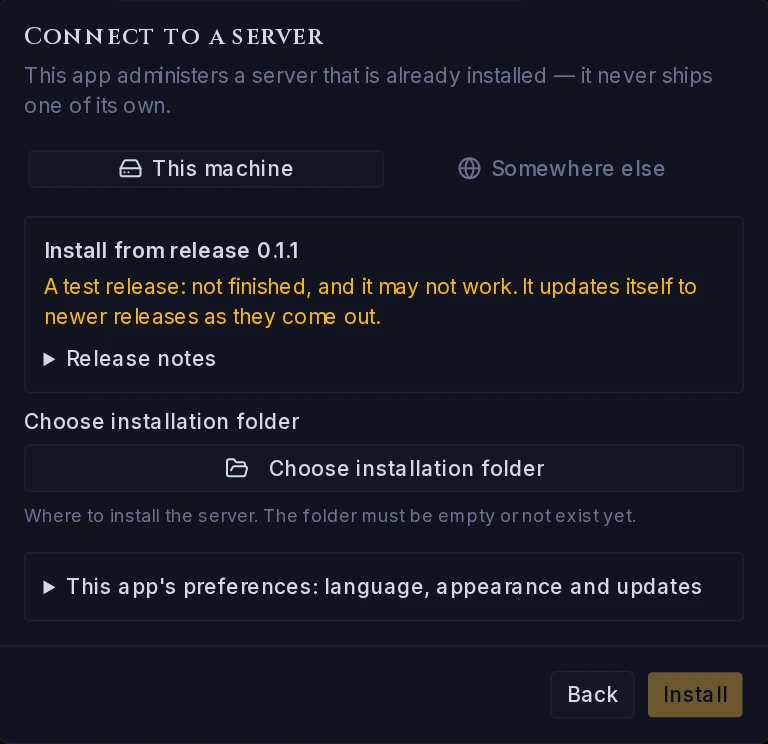 Installing a new server. The folder has to be empty, or not exist yet.
When it finishes, the app connects to the new server by itself.
If you already have a server installed, choose Server folder instead and point the app at the folder that holds the odyssey-server program.
Bringing your own world#
A new server makes a new, empty world the first time it starts. To run a world you already have, put it in place before that first start:
- Open the folder you installed the server to.
- Copy your world's
.dbfile there, besideodyssey-server, along with itsassetsfolder if it has one.
On its first start the server moves both into its data folder and uses them. If the server has already started once, see moving a world in later.
Start it#
The top of the window always shows what the server is doing. While it says Offline, press Start. A few seconds later it says Online.
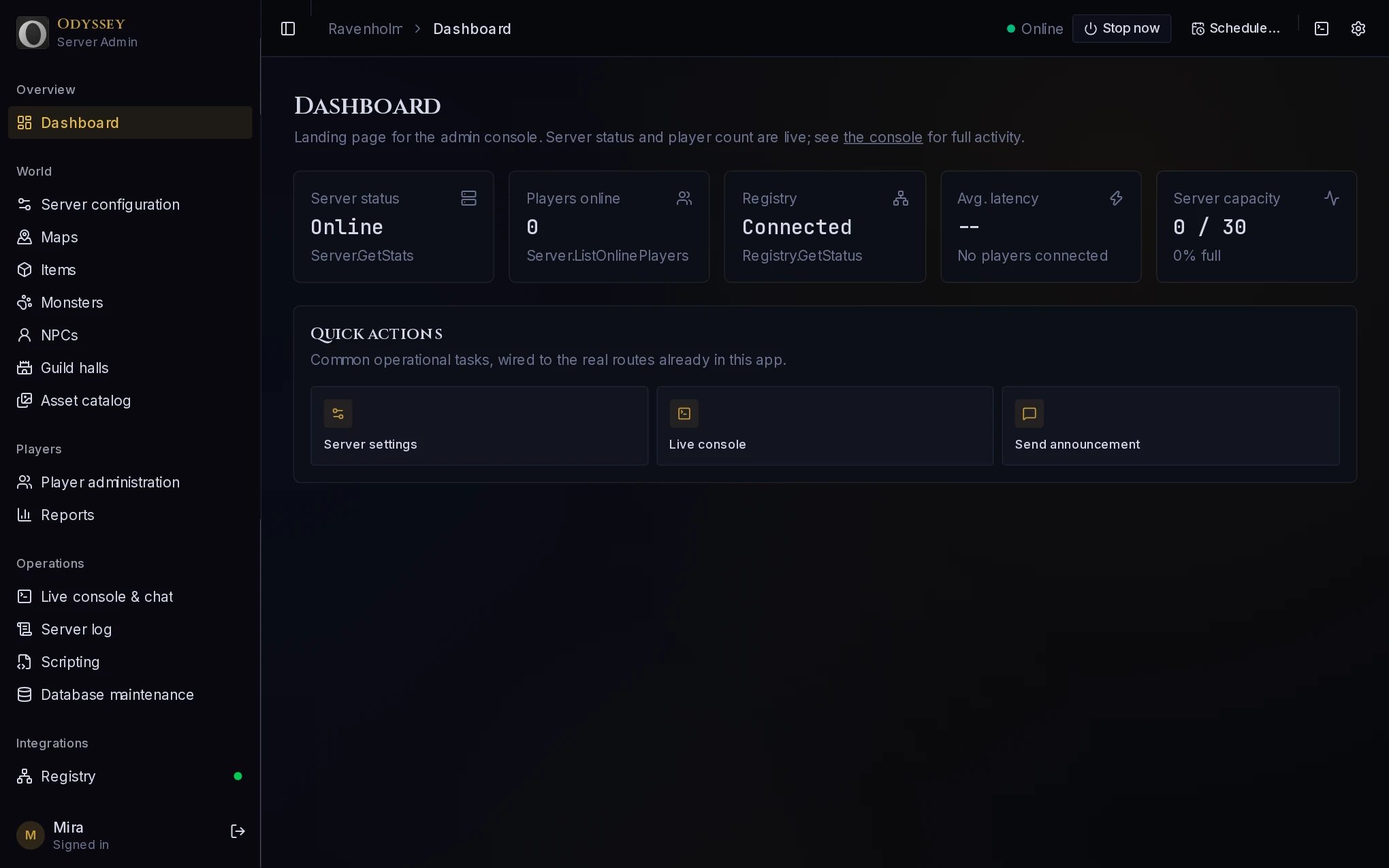 A running server. The top bar shows its state; the cards show who is on and whether it is listed.
The first time, the app asks whether the server may send crash reports and usage statistics to Burningstorm Studios, who make Odyssey. Either answer is fine, and nothing about your players is ever included. You can change your mind under Server configuration, Reports.
On Windows, the firewall may ask whether to allow Odyssey Server. Allow it, or nobody outside your computer will be able to connect.
Set it up#
Everything is in the menu on the left. Three places are worth a visit on day one.
Server configuration. The basics are under Server options:
| Setting | What it is |
|---|---|
| Message of the day | What players are told when they enter your world. |
| Hostname | Your server's name on the internet, such as play.example.com, if it has one. |
| Listen port | The port players connect to. 2597 unless you have a reason to change it. |
| Max connections | How many players can be on at once. |
| Use master ban list | Whether players banned from Odyssey as a whole are kept out of your server too. See bans. |
The rest of the page is your world's rules: how fast players fight, what things cost, guild limits, the classes, and how dark the night gets. A new world starts with the original game's numbers.
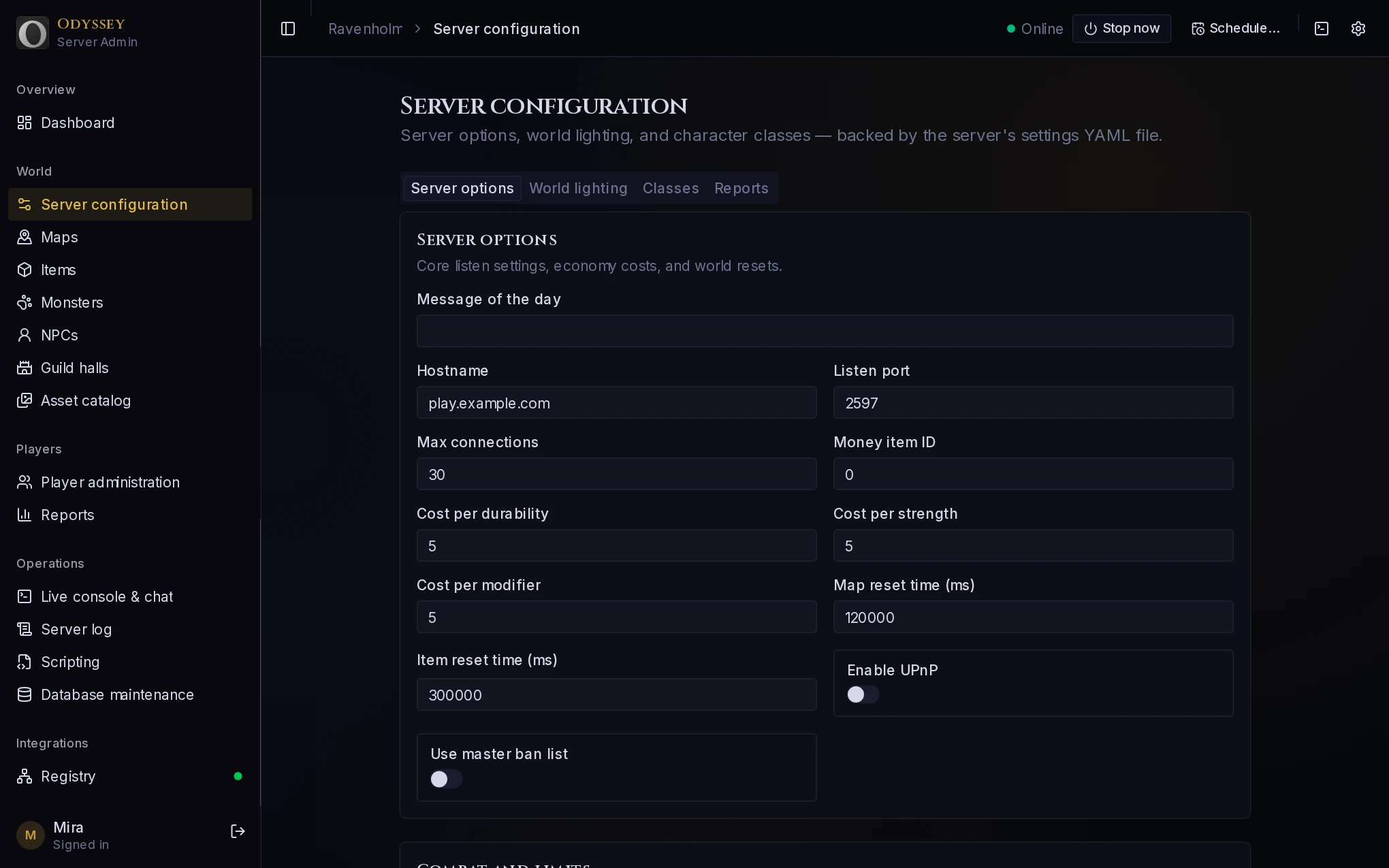 Server options. The port and connection limit take effect the next time the server starts.
Player administration. Find any player, and edit, warp, kick or ban them. This is also where you give other people roles, so they can help you run the world.
Database maintenance. Press Back up now before you change anything you are unsure about. More on backups.
Let players in#
A server on your computer can be reached by other people only if your router sends them to it. That is the one step the app cannot do for you: see Ports, routers and firewalls.
Then list your server, so it appears in the game's server list and on this site.
Stopping the server#
Stop now shuts the server down at once: everybody is saved and disconnected.
Schedule... is kinder. Choose how many minutes from now and say why, and players are warned straight away and again as the time gets close. A scheduled stop can be cancelled until it happens.
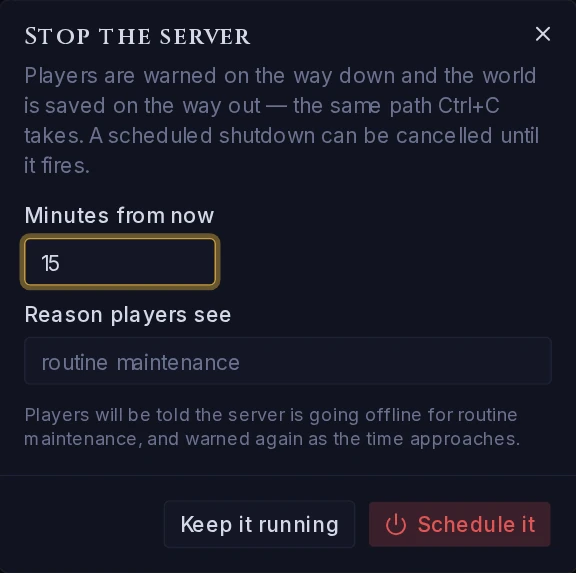 Players see the reason you give.
If something goes wrong#
- The app says "There is no server in that folder". Pick the folder that holds the
odyssey-serverprogram itself, not the folder above it. - "A server is already running". One is, from earlier. The app will not start a second on the same world, because two would damage it. It connects to the one that is running.
- The server starts and then goes back to Offline. Open Server log to see what it said. The commonest cause is another program already using the port.
- macOS says the app cannot be opened. The test releases are not yet signed by Apple. Right-click the app and choose Open, or allow it under System Settings, Privacy & Security.
- Windows shows "Windows protected your PC". Choose More info, then Run anyway.
For anything else, ask on the discussion board, linked at the foot of this page.