Getting started
Odyssey is an online world you share with other players. The game is free, and one download plays on every server there is.
This guide gets the game onto your computer and you into it, with an account. Joining a server takes it from there.
Download#
Go to the downloads page. It offers the game for the computer you are reading on, as one big button: Download for Windows, macOS or Linux. The other platforms are listed beside it.
While Odyssey is in testing, choose Test release at the top of that page if Stable has nothing to offer yet.
Install#
Windows#
Run the installer you downloaded. It installs Odyssey and starts it.
macOS#
Open the download and install Odyssey as it asks.
The test releases are not yet signed with Apple, so the first time you open Odyssey, macOS refuses and warns about it. To let it run:
- Press Cancel on the warning.
- Open System Settings, then Privacy & Security.
- Scroll down to the message about Odyssey and press Open Anyway.
You only do this once for each version you download.
Linux#
The download is an AppImage: one file that is the whole game. Make it runnable and start it.
chmod +x OdysseyClient-linux-x64.AppImage
./OdysseyClient-linux-x64.AppImage
Keep it somewhere it can stay, such as a folder in your home. The game updates itself in place.
The first start#
The first time, Odyssey asks whether it may send crash reports and usage statistics to Burningstorm Studios, who make it. A report never includes your name, your account or characters, your chat or anything else you type. Choose Send reports or Don't send. Either is fine, and you can change it later in Settings, under General.
Then you are at the sign-in screen.
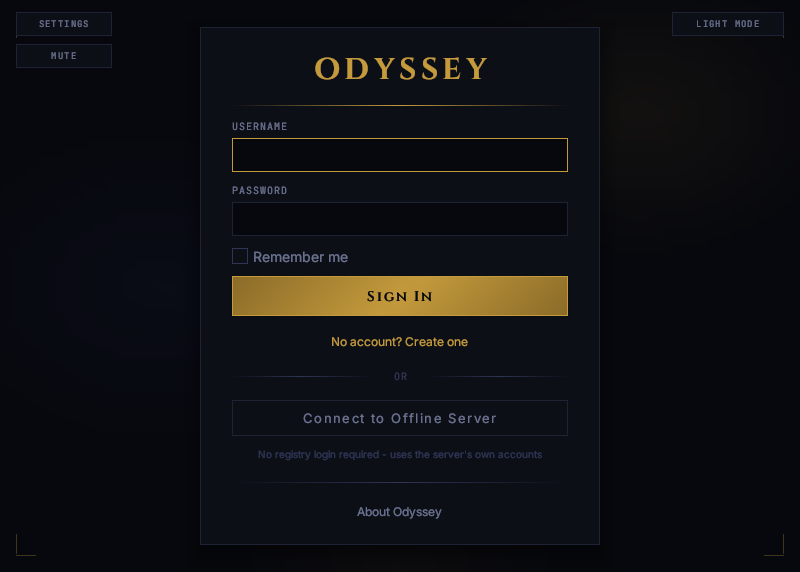 Where every session starts. Settings, sound and the colour scheme are in the corners.
Make an account#
One Odyssey account plays on every server in the server list. It is the same account as on this website.
- Press No account? Create one.
- Choose a Username, give your Email, and type a Password twice.
- Press Create Account.
- Check your email, and open the link in the message to confirm your account. You cannot sign in until you have.
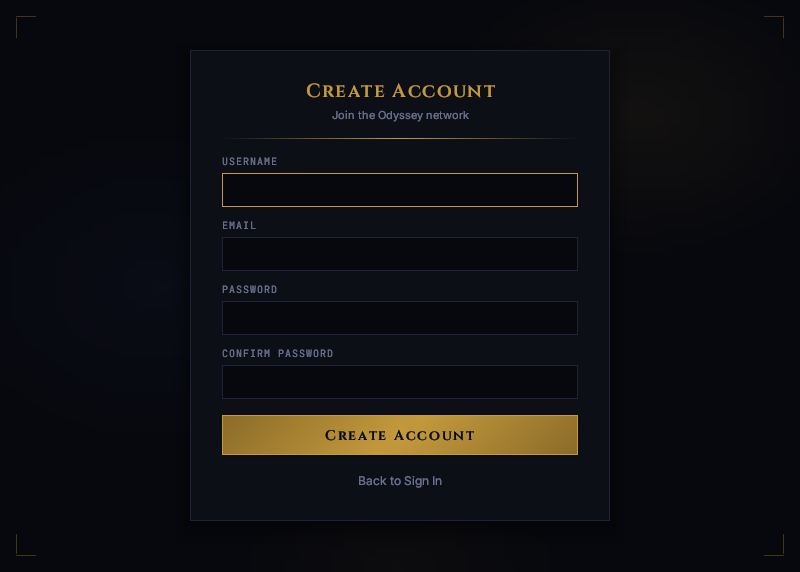 Making an account from inside the game.
You can also make the account on this website, with Register at the top of any page. It is the same thing.
Sign in#
Type your username and password and press Sign In. Tick Remember me first, and Odyssey signs you in by itself the next time.
You arrive at the list of servers that are online. Joining a server explains what you are looking at.
Updates#
Odyssey looks for a new version by itself. When there is one, the sign-in screen and the server list say Odyssey is available, with its version. Open What's New to read what changed, and press Update Now. The game downloads the new version and restarts into it. Later leaves it for another time.
To check for yourself, open Settings, General, and press Check now. Tick Beta releases there to be offered test releases as well.
A server can ask for a newer version than you have. The server list marks it UPDATE REQUIRED: update, and you can join.
If something is wrong#
| You see | What it means |
|---|---|
| Please confirm your e-mail address before logging in. | Open the link in the email you were sent when you made the account. |
| Incorrect username or password. | One of them is mistyped. Capitals matter in a password. |
| This account is locked out. Please try again later. | Too many wrong passwords in a row. Wait a while and try again. |
| Could not reach the Odyssey website. Please try again. | Odyssey could not get online. Check your connection. |