Listing your server
The registry is Odyssey's list of servers. A server on it appears on the Servers page of this site and in the server list inside the game, and players join it with one press of Play: no address to copy, no port to type.
Listing is free, and takes a couple of minutes.
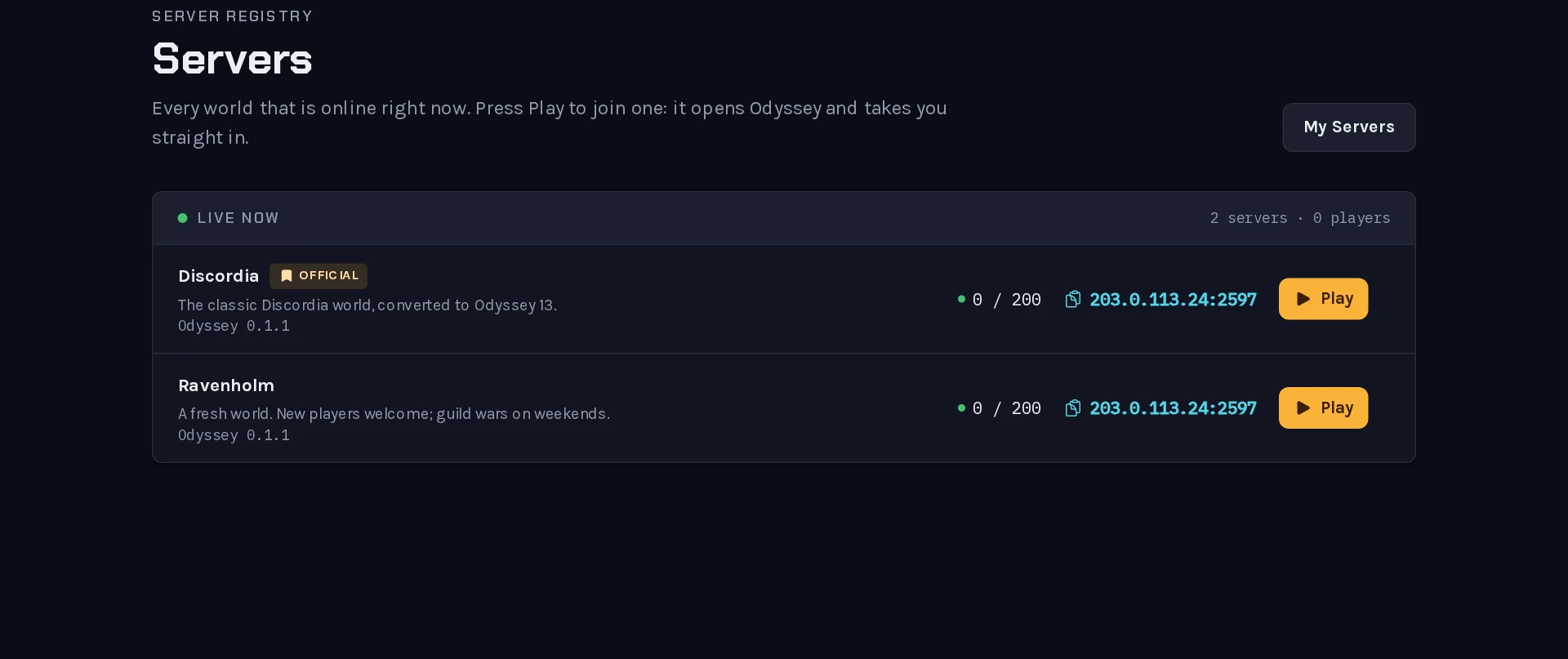 The server list. A server is on it for exactly as long as it is running.
Before you start#
- A running server. See Your first server with Odyssey Server Admin.
- An account on this site. It is the same account you play with.
- Players have to be able to reach the server: see Ports, routers and firewalls. A listed server that cannot be reached is a server players press Play on and give up on.
List it from Odyssey Server Admin#
This is the short way. Open Registry, at the foot of the menu.
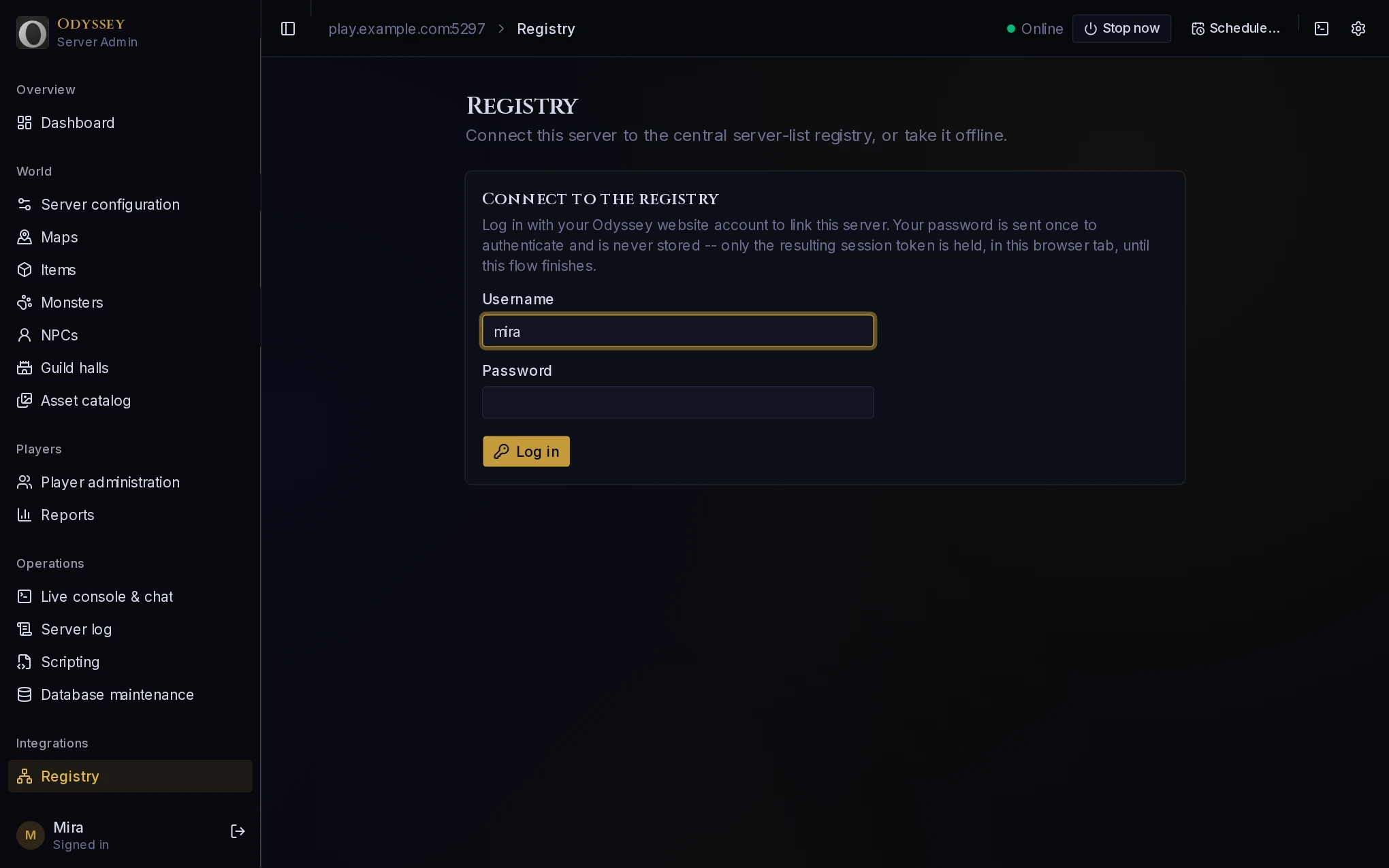 Sign in with your account on this site.
- Log in with your account on this site. Your password is used once, to prove who you are, and is not kept.
- Create a new server. Give it a name and a line or two of description. These are what players read when they are choosing where to play, so say what makes your world yours.
- Press Create & connect.
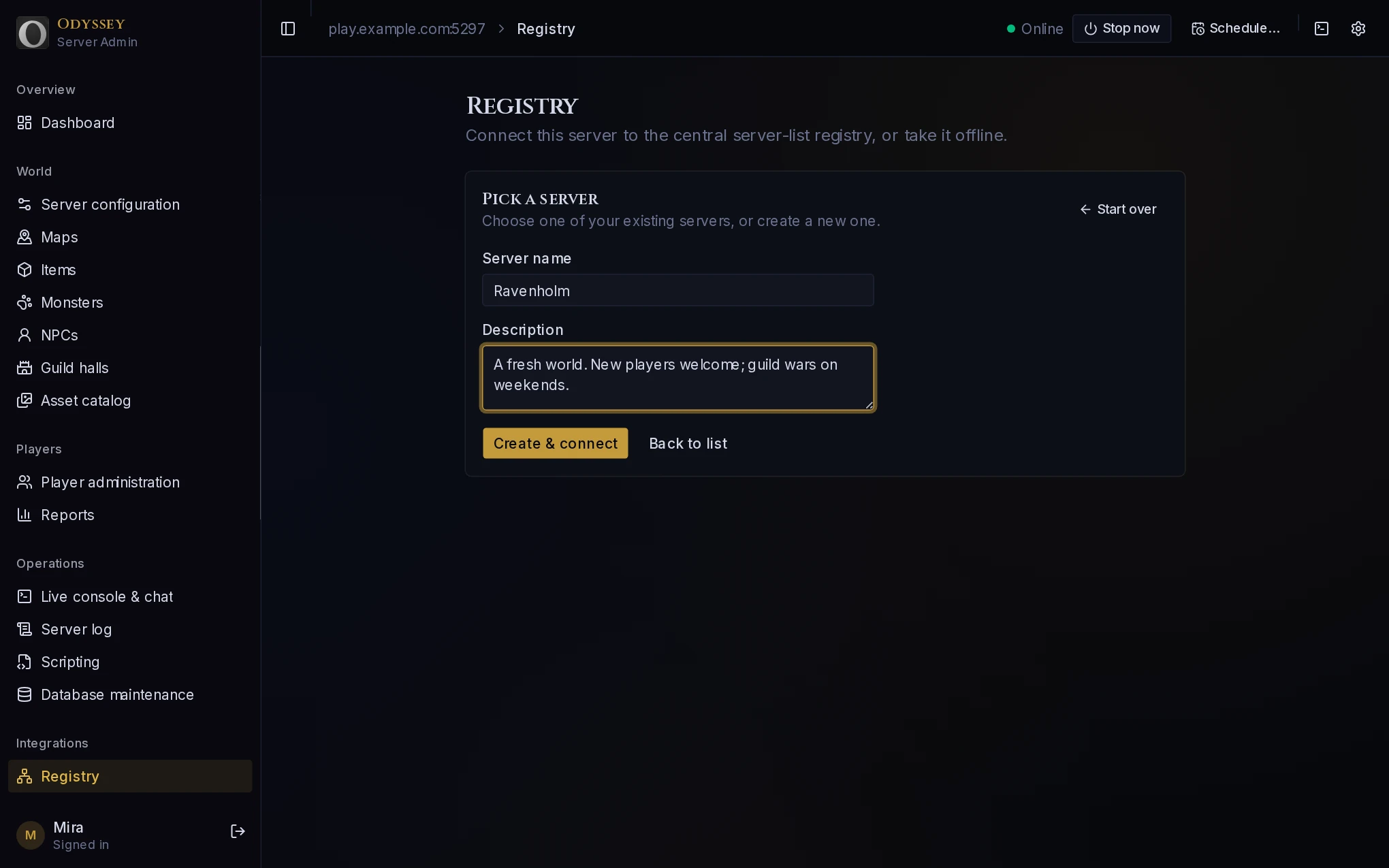 The name and description are what players see in the list.
That is all. The page changes to show the connection, and within a minute your server is in the list.
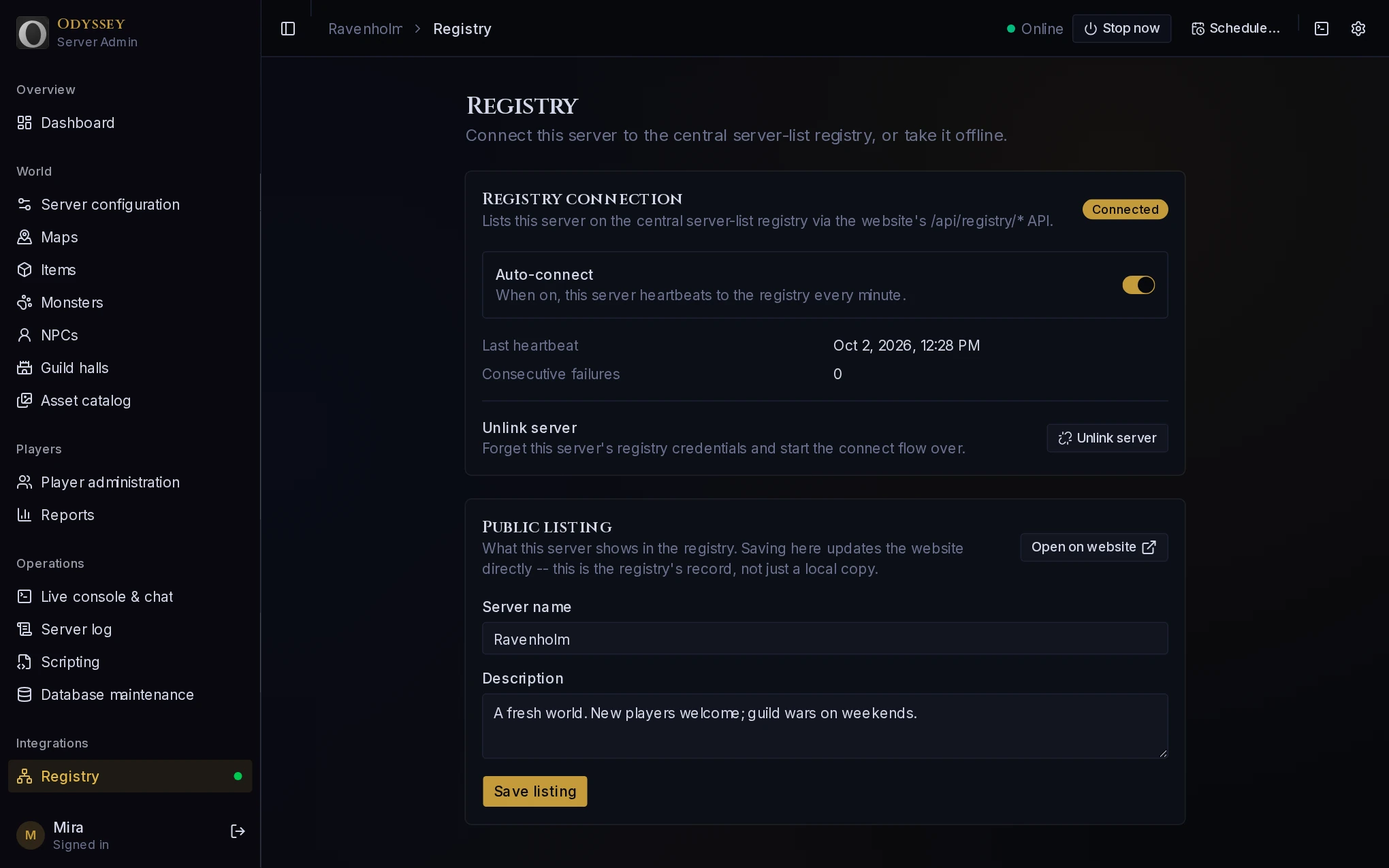 A listed server. It checks in every minute.
If you have already made a listing on this site, or someone has made you a host of theirs, it appears in the list at step 2. Choose Use this server instead of creating another.
List it from this site#
You can also start here, which is the way to go for a server you run without the app.
- Open My servers and press New server.
- Give it a name and a description.
- On the server's page, under Host key, press Generate key, and copy it.
- In the server's
server.yaml, fill in theregistrysection and restart the server:
registry:
  serverId: the id in the address of the server's page on this site
  hostKey: the key you copied
The id is the long string at the end of the page's address: odyonline.com/registry/my/this part.
What players see#
| Where it comes from | |
|---|---|
| Name and description | The listing. Change them on the Registry page of the app, or on the server's page on this site. |
| Players online | The server reports it. |
| Odyssey version | The server reports it. |
| Address | Where the server's check-in came from. You do not type it, and it follows you if your address changes. |
| Official | Given by Odyssey's admins to servers they run. |
| Private | The server has its whitelist on. |
| Out of date / Needs a newer Odyssey | The server and the current game cannot play together. Update the server, or wait for players' games to update. |
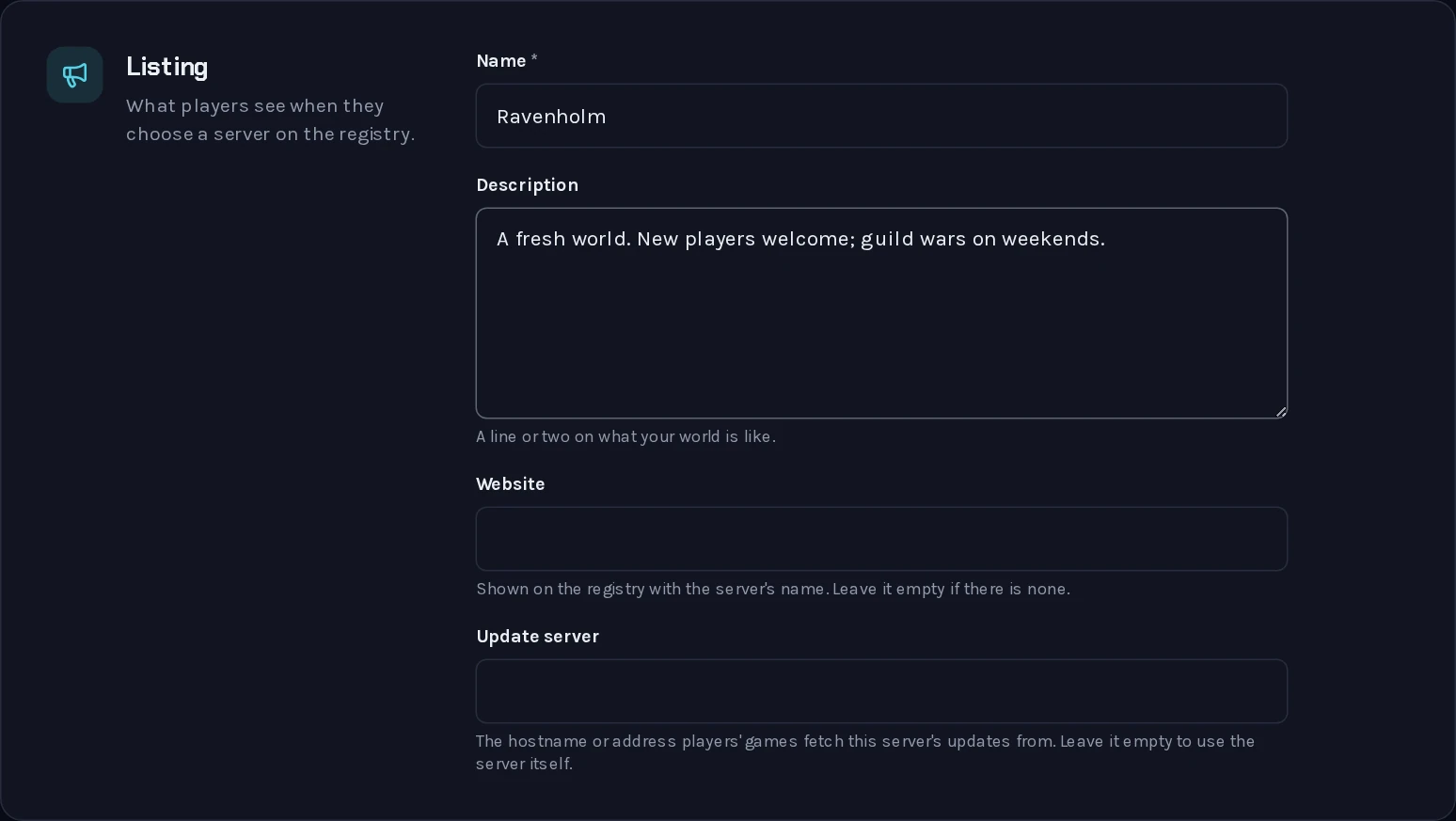 The listing on this site. The app's Registry page edits the same thing.
Online and offline#
A server is on the list while it is running. It checks in every minute; stop it and it leaves the list within two. Start it again and it is back. Nothing needs doing either way.
On the Registry page, Auto-connect is the switch for this. Turn it off to keep the server running but unlisted, for example while you work on it.
Last heartbeat and Consecutive failures tell you whether the check-ins are getting through. A few failures in a row usually mean the machine has lost its internet connection.
Taking a server off the list#
Unlink server, on the Registry page, makes the server forget its listing and stop checking in. The listing itself stays on this site, with its name and its key, and you can connect the same server, or another, to it later.
If it does not show up#
- The Registry page says Connected, but the server is not in the list. Give it a minute, and reload the list.
- It is in the list, but nobody can join. The ports are not open: see Ports, routers and firewalls.
- "Connection failing". The server cannot reach this site. Check the machine's internet connection. If the host key was regenerated on this site, the server is still using the old one: unlink it and connect it again.
- The page says the server is banned. Odyssey's admins have taken it off the list, and the page says why. See Bans.