Running the server on its own
The server is a program of its own. It does not need Odyssey Server Admin, a desktop, or a screen, which makes it at home on a rented machine in a data centre or a small computer in a cupboard.
This guide installs and runs it from a terminal, and then connects Odyssey Server Admin to it from your own computer, so you still get the comfortable way to manage it.
Download and unpack#
Get Odyssey Server for the machine's system from the downloads page and unpack it into a folder of its own.
mkdir odyssey && cd odyssey
tar -xzf ~/OdysseyServer-0.1.1-linux-x64.tar.gz
On Windows it is a .zip: unpack it wherever you like.
What you get:
| File | What it is |
|---|---|
odyssey-server | What you run. It starts the right version of the server and installs updates. (odyssey-server.exe on Windows.) |
versions/ | Each installed version. The one before the newest is kept, so an update that does not start can be undone. |
current | Which version odyssey-server starts. |
README.txt | A short version of this page. |
Everything the server needs comes in the download. There is nothing else to install.
Running a world you already have#
To run a world you have, such as one converted from the original Odyssey, put its .db file and its assets folder in this folder, beside odyssey-server, before the first start. The server moves them into its data folder and uses them.
If the server has already started once:
- Stop it.
- Move the
.dbfile and theassetsfolder into thedatafolder yourself. - In the
databasesection ofdata/server.yaml, setfileto the.dbfile's name.
With no world beside it, the server makes a new, empty one, and says where.
The world is kept in a single file unless you choose otherwise. To keep it in PostgreSQL, MySQL or MariaDB instead, see Choosing a database.
Start it#
./odyssey-server
The first start creates the data folder beside the program. Everything the server keeps is in there:
In data/ | What it is |
|---|---|
server.yaml | This install's settings. Every setting explained. |
the .db file | Your world: its maps, items, scripts, players and rules. |
assets/ | The pictures, sounds and music your world sends to players. |
certs/ | The certificate that proves to players' games that this is your server. Keep it with the server when you move it. |
backups/ | Copies of the world. See Backups and updates. |
logs/ | What the server has written. |
To keep that folder somewhere else, say where:
./odyssey-server --data-dir /srv/odyssey-data
or set ODYSSEY_DATA_DIR.
Stop the server with Ctrl+C. Players are saved and disconnected cleanly, and the same happens when the system asks it to stop.
Players connect over UDP ports 2597 to 2599. If the machine has a firewall, open them: see Ports, routers and firewalls.
Keeping it running on Linux#
Nothing is installed as a service for you, but odyssey-server behaves the way systemd expects. A unit like this starts it at boot and restarts it if it fails:
# /etc/systemd/system/odyssey.service
[Unit]
Description=Odyssey Server
After=network-online.target
Wants=network-online.target

[Service]
User=odyssey
WorkingDirectory=/home/odyssey/odyssey
ExecStart=/home/odyssey/odyssey/odyssey-server
Restart=on-failure
TimeoutStopSec=90

[Install]
WantedBy=multi-user.target
sudo systemctl enable --now odyssey
journalctl -u odyssey -f
Run it as a user of its own, not as root. That user needs to own the folder, since the server writes its data and its updates there.
On Windows, run odyssey-server.exe from a terminal, or let Odyssey Server Admin on that machine start it. It does not yet run as a Windows service.
Manage it from your own computer#
Odyssey Server Admin can manage a server on another machine. It is off until you turn it on, because it opens a port.
1. Turn on the network port. In data/server.yaml:
adminApi:
  enableNetwork: true
  networkPort: 5297
Restart the server, and allow TCP port 5297 through the machine's firewall.
2. Note two things the server prints when it starts. They are also in its log.
- The certificate fingerprint, a long line of letters and numbers.
- The setup code, five groups of five characters. It is also in
data/setup-code.txt.
3. Connect. In Odyssey Server Admin on your own computer, choose Somewhere else and enter the server's address with the port, starting https://.
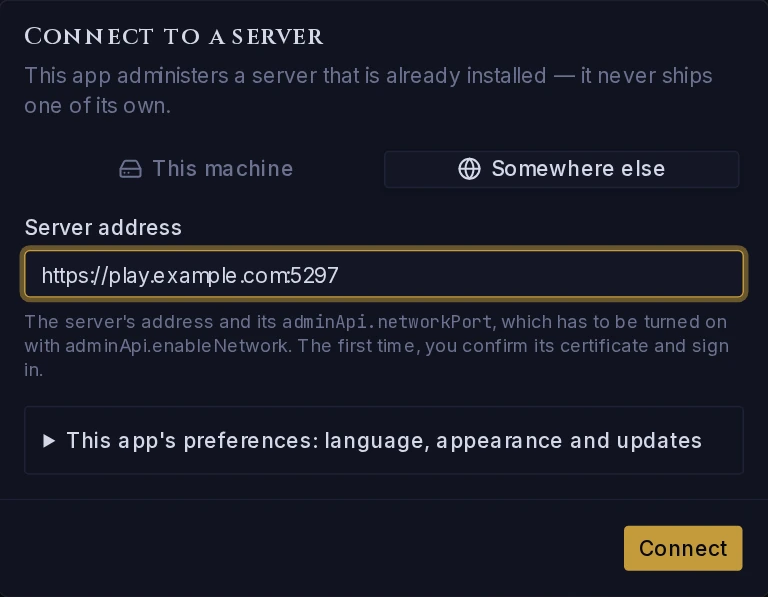 Connecting to a server somewhere else.
4. Confirm the certificate. The app shows the fingerprint of the server it reached and asks whether it is the right one. Compare it with the one the server printed. If they match, trust it. The app remembers, and only asks again if the certificate ever changes.
5. Claim the server. Nobody has an account that can sign in yet, so choose Claim this server and enter the setup code. It makes you the server's owner, once.
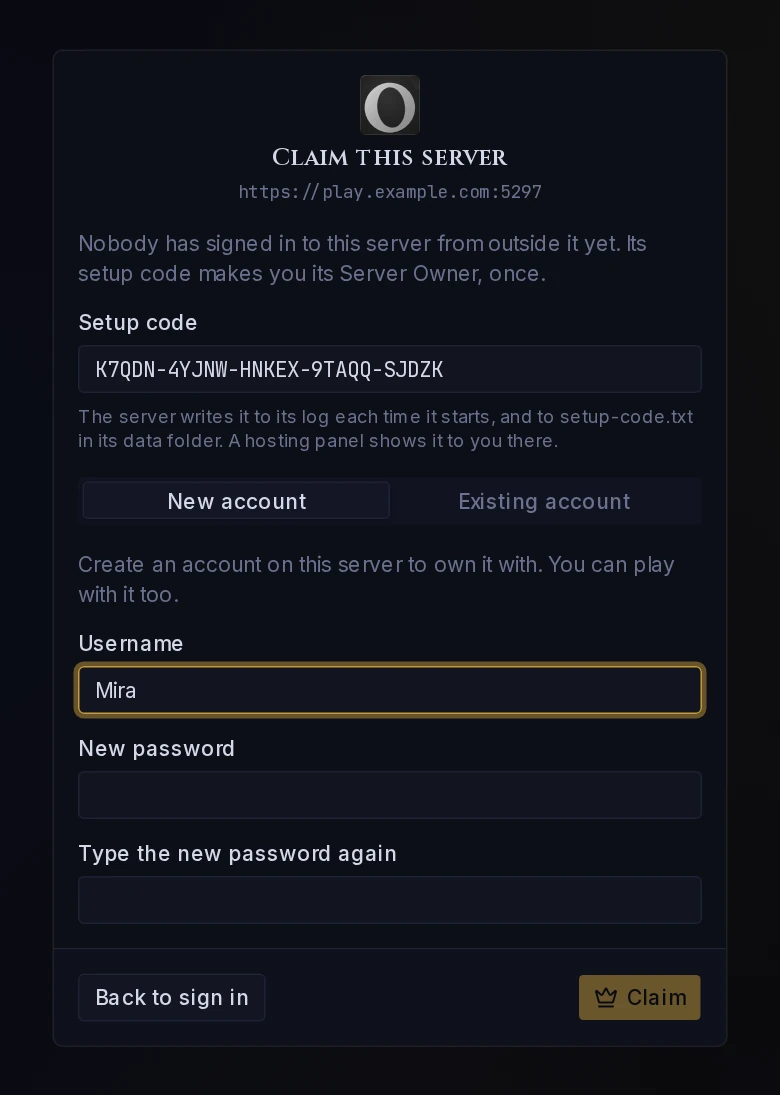 The setup code proves you are the person who runs the machine.
You can claim it with a new account made on the spot, or with an account already in the world, such as your character in a converted one. From then on you sign in with that account, and the setup code is no longer needed.
If the server is already on the registry, there is a shorter way: sign in with the website account that owns its listing, and you are its owner.
The connection is encrypted, and everybody who uses it has to sign in. What they may then do depends on the roles you give them under Player administration: only people with the right to use the admin app can sign in at all.
Updating#
The server looks for a new release when it starts and every six hours, and writes a line in its log when there is one. It never installs one by itself.
./odyssey-server update
See Backups and updates for what that does, and how to give players warning.