Backups and updates
Your world is one file: the .db in the server's data folder. It holds every map, item, script, account and character. Keep copies of it and you can recover from anything.
If you keep your world in PostgreSQL, MySQL or MariaDB instead, everything on this page works the same way, and a backup is still a .db file. Where this page says the .db file, read your database.
What to keep safe#
Everything worth keeping is in the data folder, beside odyssey-server.
In data/ | Why it matters |
|---|---|
The .db file | The world itself. The one you must not lose. |
assets/ | Your world's own pictures, sounds and music. |
certs/ | Proves to players' games that the server is yours. If it changes, players are warned that the server is not the one they knew. |
server.yaml | This install's settings. Quick to recreate, but it holds your registry host key. |
The server itself, the versions folder, is not worth backing up. It can always be downloaded again.
Backing up#
In Odyssey Server Admin, open Database maintenance.
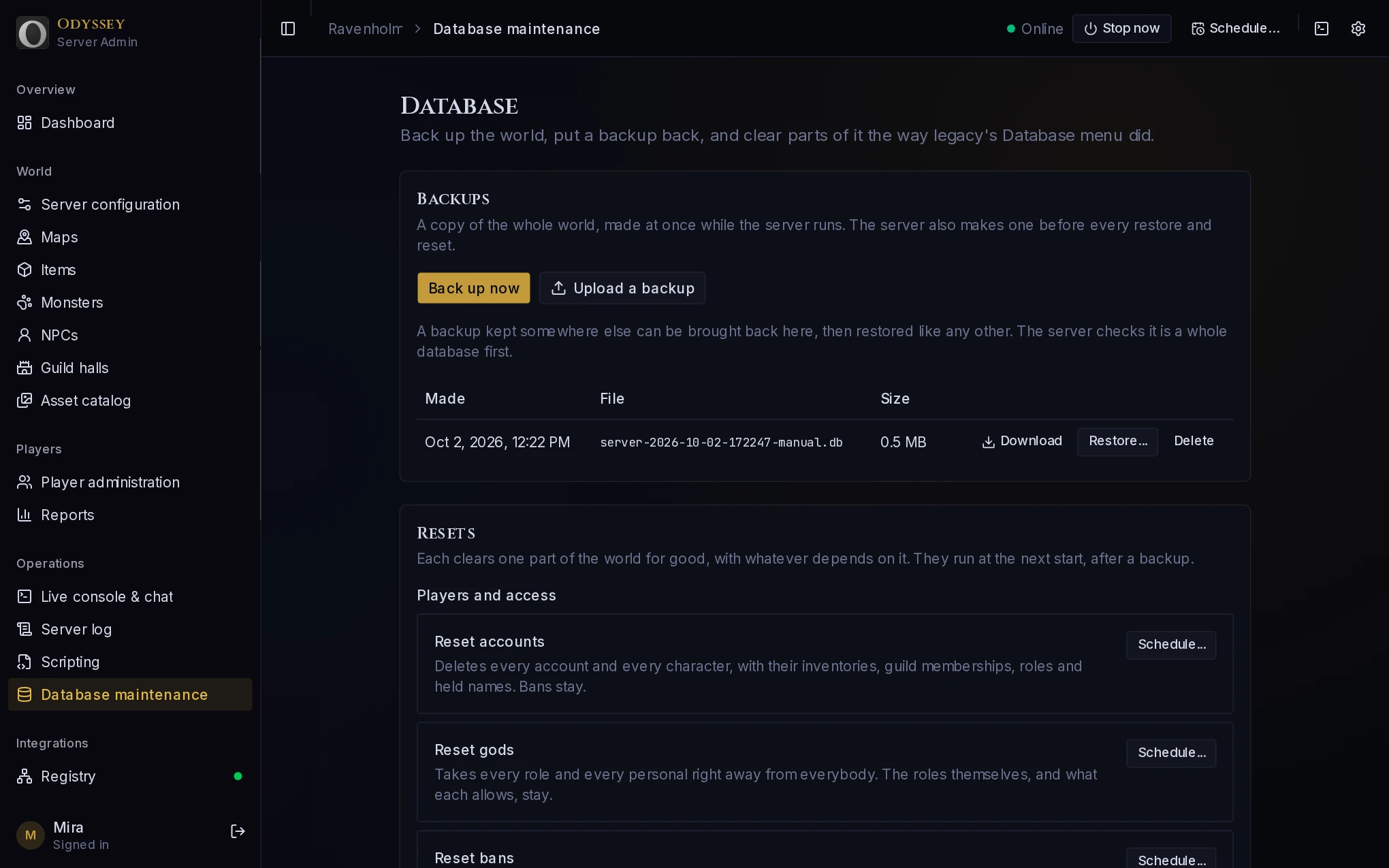 Backups on the Database page. Each can be downloaded, restored or deleted.
Back up now makes a complete copy of the world, at once, while the server keeps running. Nobody is disconnected.
Backups are kept in data/backups/, which is on the same disk as the world. That protects you from a mistake, not from the disk failing. Press Download to save a copy to your own computer, and do it regularly.
The server also makes a backup by itself before every restore, every reset, and every update.
Restoring#
- On the Database page, press Restore... beside the backup you want.
- The restore is listed under At the next start. It has not happened yet, and can be cancelled.
- Restart the server. It first backs up the world as it is, then puts the backup in its place.
Everything that happened since that backup was made is undone: new characters, levels gained, items found. The backup taken in step 3 is how you get back if you chose wrongly, and History at the foot of the page names it.
To restore a backup you keep elsewhere, press Upload a backup first. The server checks the file is a whole database before it accepts it.
Resets#
The same page can clear one part of a world for good: every account, every guild, every map, and so on. Each says exactly what it deletes and asks you to type the world's name. Like a restore, a reset runs at the next start, after a backup.
Updating the server#
The server looks for a new release when it starts and every six hours. It never installs one by itself: your players are in the middle of something, and you choose when.
When there is one, Odyssey Server Admin shows Update available in its top bar.
- Download. The new version is fetched and set beside the current one. Nothing has changed yet, and players notice nothing.
- Script check. The server compiles every script in your world against the new version and lists any that would stop working. If any would, fix them first, or wait.
- Install. Choose how many minutes to give players and what reason they are shown. They are warned at once and again as the time gets close.
- When the time comes, players are saved and disconnected, the world is backed up, and the server restarts as the new version.
If the new version does not start properly, the server goes back to the previous one by itself and restores the backup it took, and the app tells you what happened. An update cannot leave you with a server that will not run.
From a terminal#
./odyssey-server update --delay 10m --reason "a new version"
| Option | What it does |
|---|---|
--delay | How long to give players: 90s, 10m, 1h. Without it, the update happens at once. |
--reason | What players are told. |
--version | A particular version, instead of the newest. |
--yes | Do not ask for confirmation. |
If the server is running, this does what the app does, countdown included. If it is stopped, the update is made ready and the next start is the new version.
Test releases#
A server follows the stable releases unless told otherwise. To be offered test releases too, set this in server.yaml:
updates:
  channel: beta
A server installed from a test release is offered newer test releases already.
Updating Odyssey Server Admin#
The app updates itself. When a new version is out it shows Update in the top bar. Updating restarts the app, not the server: players are not disturbed, and the app reconnects when it comes back.
Players and versions#
Players' games update themselves as well. After a server update, a player whose game is too old to join is told which version they need and can update from that message. A server that is too old for the newest game is marked Out of date in the server list, which is a good reason not to fall far behind.
Moving to another machine#
- Stop the server.
- Copy the whole
datafolder to the new machine. - Install the server there, and put the
datafolder besideodyssey-serverbefore starting it.
Because certs and server.yaml came along, players' games recognise the server, and it takes up its place on the registry as soon as it starts.